📋 Jump to Section
DoorVi + PDK Integration
Step-by-step guide to connect your PDK access control system with DoorVi. Follow the 15 steps below to enable video intercom and QR-based visitor entry on your PDK-managed gates and doors.
Looking for an overview first? Read the DoorVi PDK integration page.
Looking for the pdk.io login? PDK's own dashboard is at pdk.io. This page explains how DoorVi connects to it.
What is PDK?
Physical security platform for modern access control
ProdataKey (PDK)
Why integrate DoorVi with PDK?
How It Works
End-to-end visitor flow with DoorVi and PDK
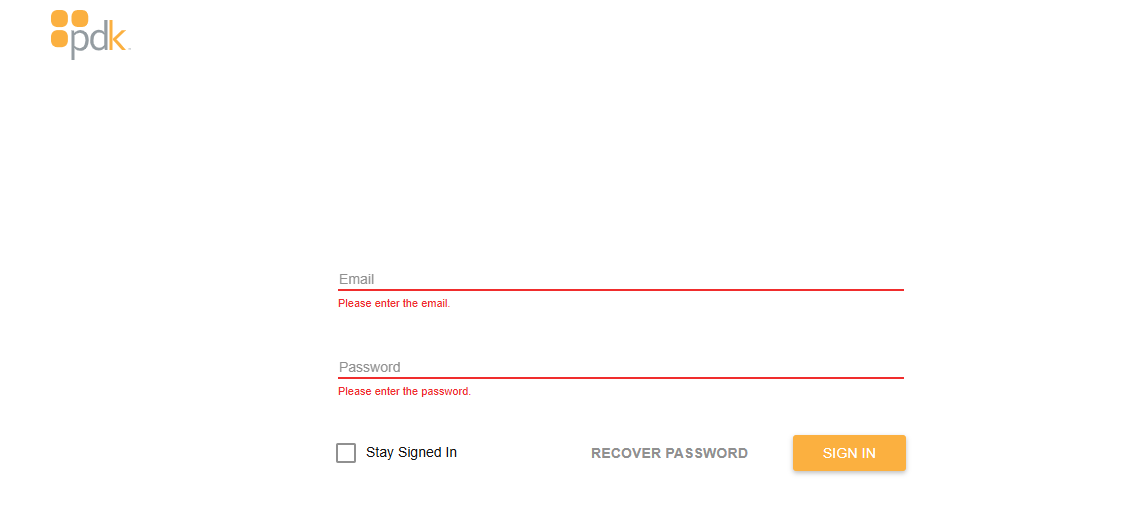
Step 1 & 2 — Open the PDK Login Page
Sign in to your PDK account at beta.pdk.io
- Email: Type your registered email address in the "Email" field.
- Password: Type your password in the "Password" field.
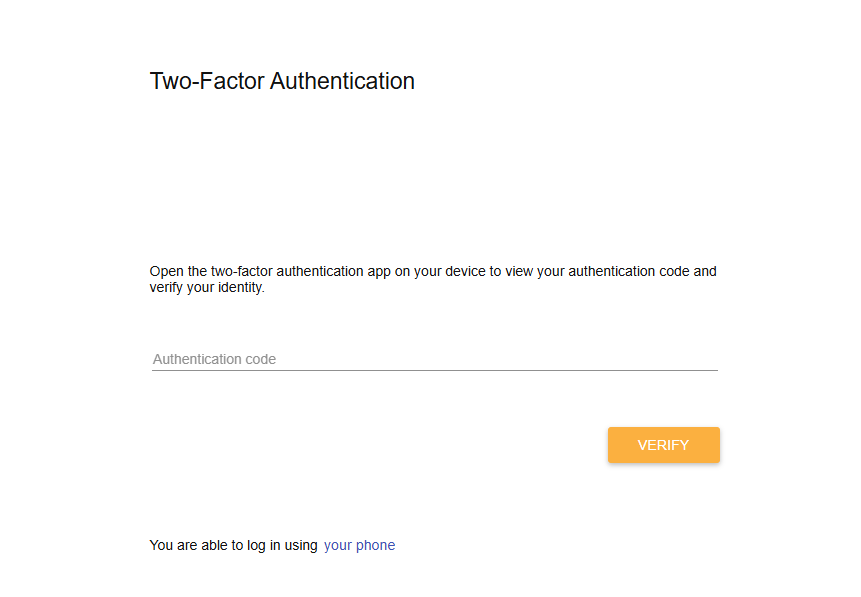
Step 3 — Two-Factor Authentication
Verify your identity with an authentication code
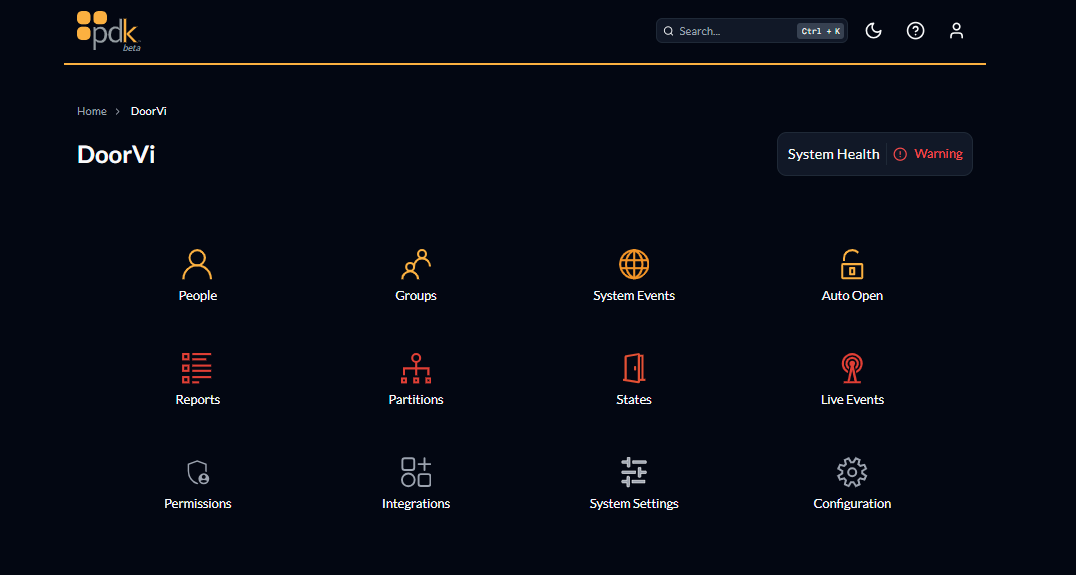
Step 4 — Dashboard & Integrations
Navigate to Integrations from the PDK main dashboard
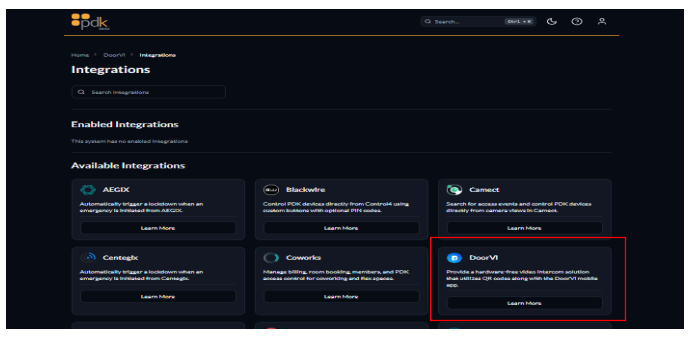
Step 5 — Find DoorVi in Available Integrations
Locate DoorVi in the PDK integrations marketplace
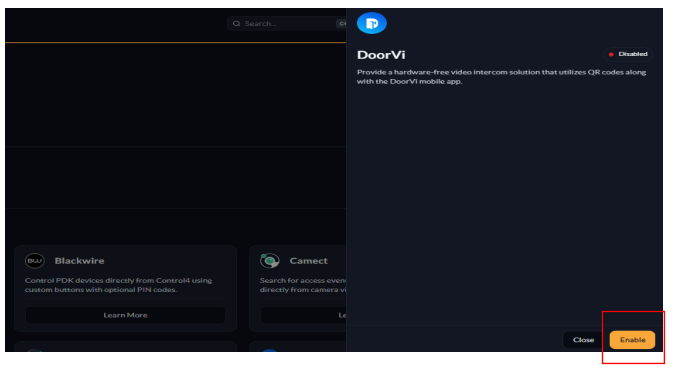
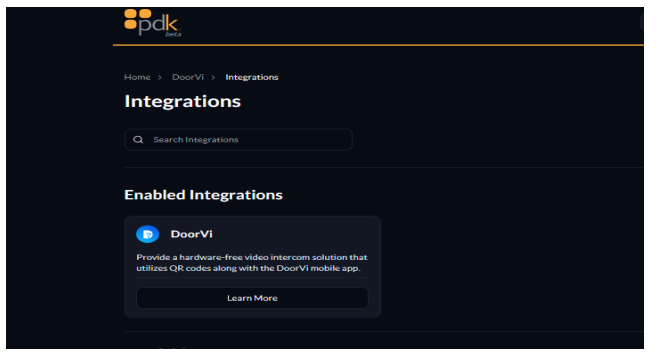
Steps 6 & 7 — Enable DoorVi
Authorize DoorVi to integrate with your PDK system
Step 8 — Login to DoorVi Control Panel
Open DoorVi MulTi in a new browser tab
Step 9 — Access PDK Manager
Find PDK Manager in the DoorVi side menu
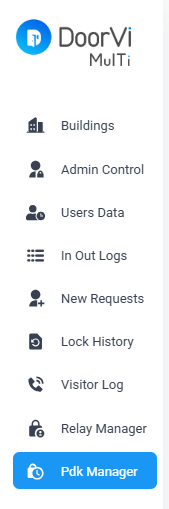
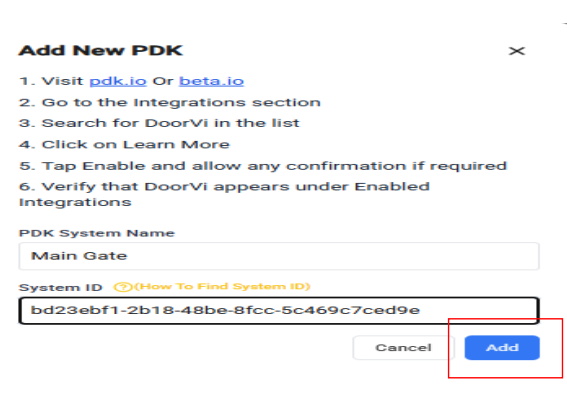
Steps 10 & 11 — Add New PDK System
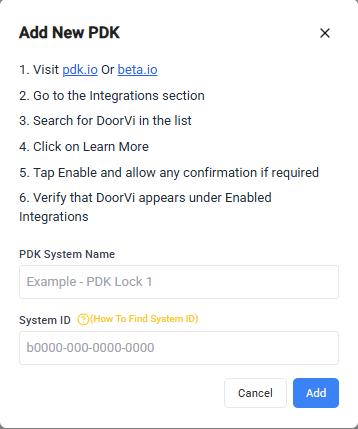
Register your PDK system in DoorVi using your System ID
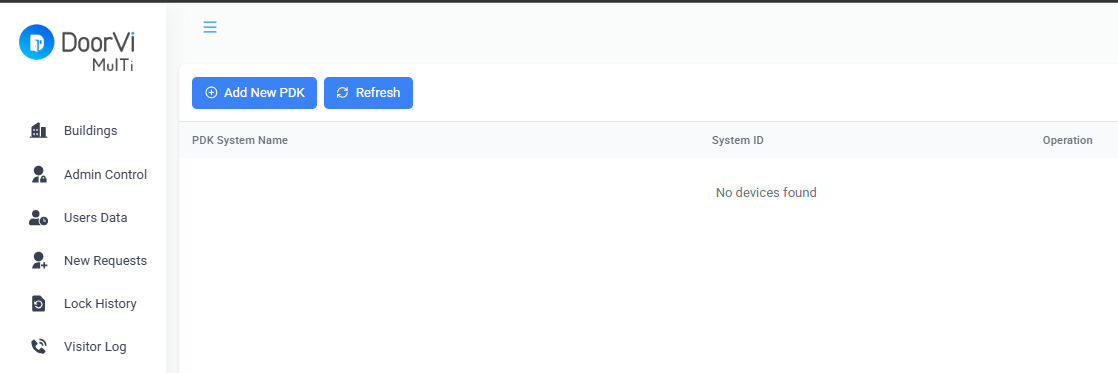
- PDK System Name — name it anything that suits your setup (see examples below).
- System ID — your PDK System ID (see how to find it below).
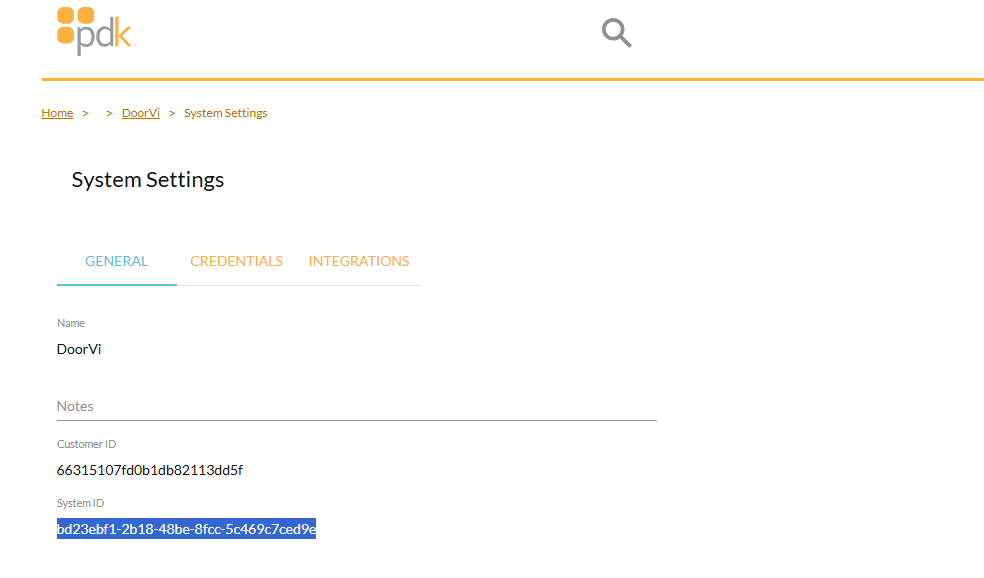
Steps 12 & 13 — Navigate to Building Locks
Open the Locks panel for your building in DoorVi
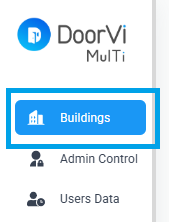
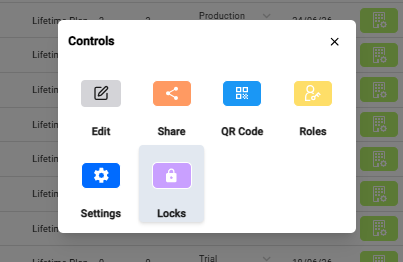
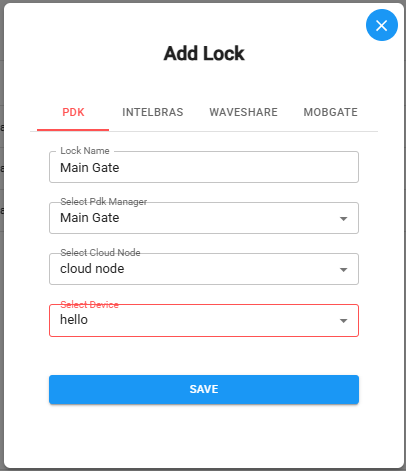
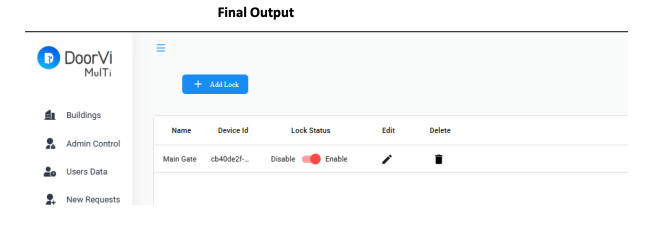
Steps 14 & 15 — Add Lock
Create a PDK-linked lock for this building entry point
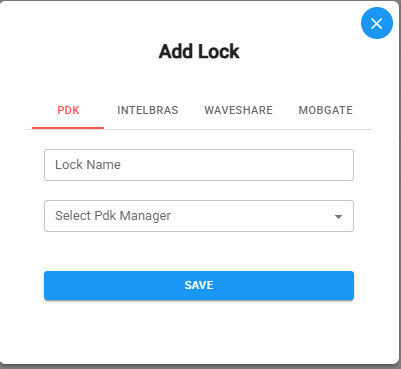
- Lock Name — enter a descriptive name such as "Main Entrance", "Front Gate", or "Back Gate".
- Select PDK Manager — choose the PDK system you added in Step 11 from the dropdown.
- Select Cloud Node — choose the cloud node from the dropdown.
- Select Device — choose the specific PDK device/reader from the dropdown.