How It Works Use Cases Features Demo Integrations Resources Blog Contact
Book Demo
📋 Jump to Section
Admin Documentation

DoorVi Admin
Dashboard Guide

Everything you need to manage your gated community —
resident access, pre-approvals, gate hardware & visitor monitoring.

🏢 Multi-Building 📲 Mobile App Linked 🌐 Access Globally 🔌 Hardware Managed
🏠

Dashboard Overview

What you see when you log in and how to navigate

🏢

Property Management

Add and configure buildings and their units under your account

Add a New Building

Each building has its own resident list, gate devices, and visitor log. You can manage multiple buildings from one admin account.
1
Go to Buildings → + Add (top right of the Buildings page)
2
Select the Unit Type from the dropdown (e.g. Apartment, Villa, Office)
3
Enter the Name and Address of the building
4
Optionally add a Phone Number for the building's reception or guard desk
5
Set Auto-Approve Join Requests — if Yes, residents who find this building via search are auto-approved without manual review
6
Toggle People can search this building — controls whether the building appears in the DoorVi app's search section
7
Select a Plan (Lifetime or date-bound) and upload your building logo
8
Click Save to create the building
Add Building — Dashboard
Add Building modal in DoorVi dashboard
🏢

Buildings & Wings

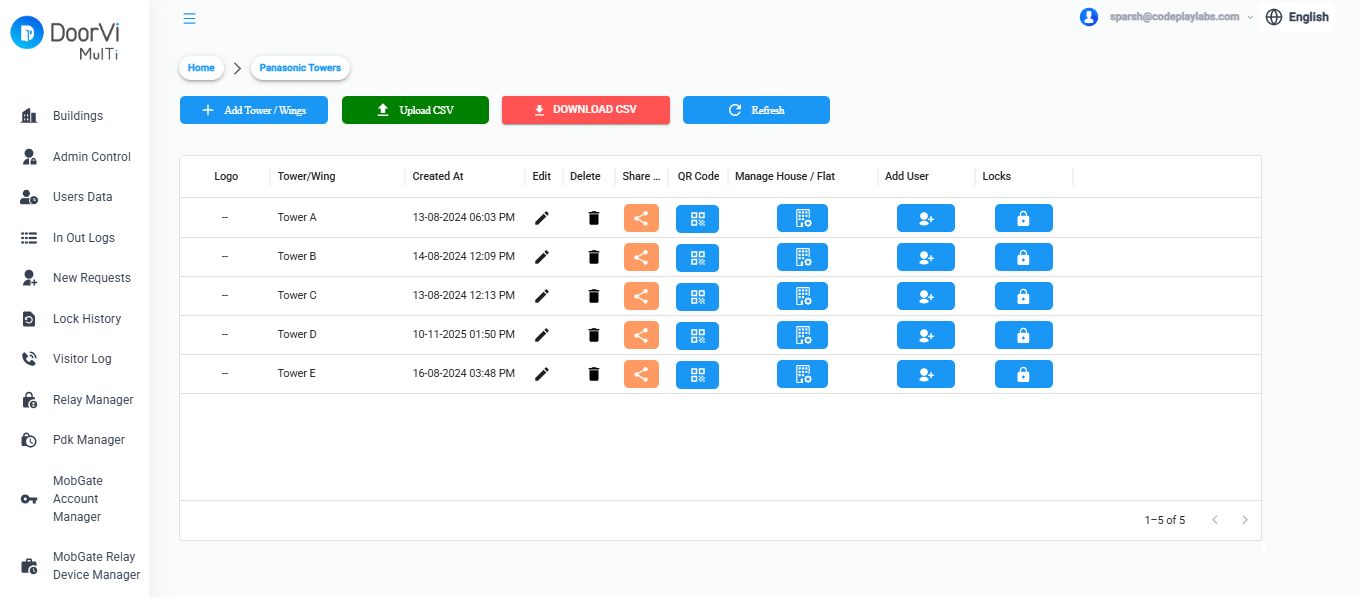
Each building can have multiple towers or wings. From this screen you can add, edit, share, and manage all towers/wings under a property.
1
Open a building from the Buildings list — you'll land on the Tower/Wings overview page
2
Click + Add Tower / Wings (top-left blue button) to create a new tower or wing
3
Each row shows the tower name, creation date, and action buttons — Edit (✏️), Delete (🗑️), Share (orange), QR Code (blue)
4
Click Manage House / Flat to add or view all units inside that tower
5
Click Add User to assign residents to units in that tower
6
Use Upload CSV (green) to bulk-import tower data, or Download CSV (red) to export the current list
Tower / Wings Management Screen
DoorVi MulTi — Buildings and Wings management dashboard
📤

Bulk Upload Towers & Apartments

Use a CSV file to add all your towers and apartment units in one go — ideal for large properties with many floors and units.
1
Click Download CSV (red button) on the Tower/Wings page to get the sample template
2
Open the downloaded file — it has two columns: sub_unit_1 (Tower name) and sub_unit_2 (Apartment/Flat number)
3
Fill in your data following the format below — one row per apartment. Keep the header row exactly as-is
4
Save the file as .csv (not .xlsx). In Excel: File → Save As → CSV UTF-8
5
Click Upload CSV (green button) → drag & drop your file or click to select → click Upload
6
After uploading, wait up to 5 minutes for all towers and apartments to appear in the dashboard. Click Refresh to check
📋
CSV format example:
sub_unit_1, sub_unit_2
Tower A, A - 101
Tower A, A - 102
Tower B, B - 201
Tower B, B - 202

⬇ Download sample CSV
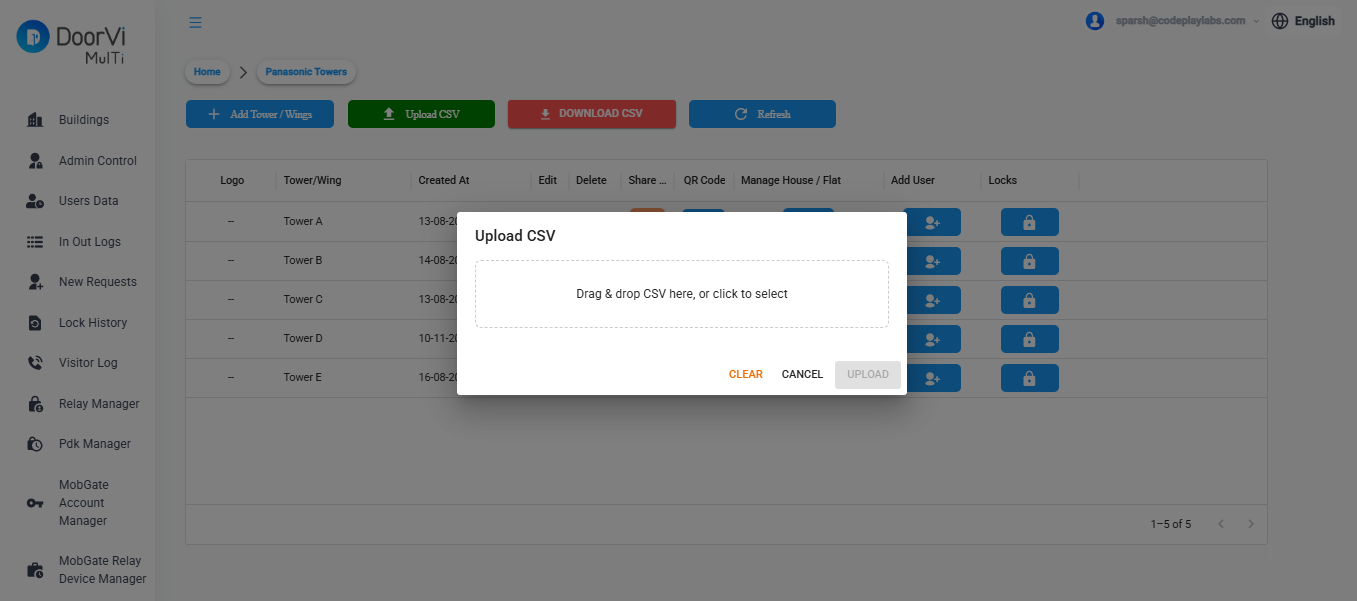
Upload CSV Modal
DoorVi MulTi — Upload CSV modal dialog
⏱️
After clicking Upload, it can take up to 5 minutes for towers and apartments to appear. Do not upload again — click Refresh to check progress.
🏷️

Select Building — Current Status

Every building in your admin panel has a lifecycle status. Use the Select Status Type dropdown on the building row to update it at any time.
1
Go to Admin Panel → Societies / Buildings — each building appears as a row in the table
2
Locate the Select Status Type dropdown column for the building you want to update
3
Click the dropdown and choose the appropriate status from the list below
4
The status saves instantly — no additional confirmation is required
📋
Status options explained:
  • Testing — Building is being set up or evaluated; not yet live for residents
  • Trial — Active trial period; full features enabled for a limited time
  • Production — Building is live and fully operational
  • Expired — Subscription or trial has lapsed; access is restricted
  • Payment Pending — Awaiting payment confirmation before reactivation
  • Can Be Deleted — Marked for removal; safe to delete from the system
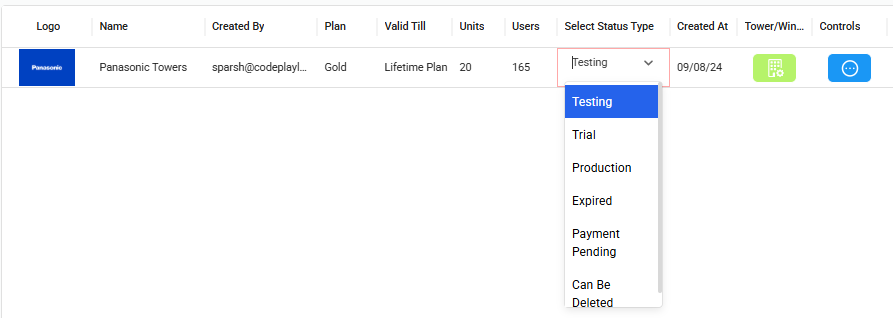
Select Building — Current Status Dropdown
DoorVi admin panel — Select Status Type dropdown showing Testing, Trial, Production, Expired, Payment Pending, Can Be Deleted options
🔗

Share Invitation Links with Residents & Tenants
Generate and share unique access links with residents directly from the admin panel — at the building level, tower or wing level, or individual flat level.
1
Go to Admin Panel → Buildings — each building is listed as a row in the table
2
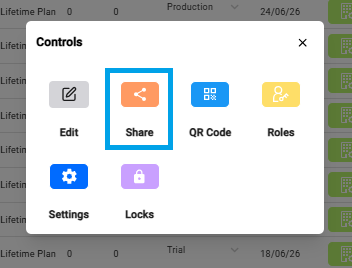
At the end of the building row, click the blue Controls icon — in the popup, click the Share button — a unique invitation link for that building is generated instantly
3
Click Copy Link and share it with your residents via WhatsApp, SMS, or email — residents use this link to join the building on DoorVi
4
To share a link for a specific Tower or Wing, go to Buildings → Tower/Wings and click the Share icon next to the tower row
5
To share a link for an individual flat or unit, open the unit list inside a tower and click the Share icon next to the flat — each unit has its own unique link
Controls Popup — Share Button
DoorVi admin panel — Controls popup showing Edit, Share, QR Code, Roles, Settings and Locks buttons
💡
Each link is scoped to its level — a building link lets the resident pick their unit during onboarding, while a flat-level link takes them directly to their unit. Use flat-level links for a faster, more precise onboarding experience.
📲

Generate QR Code

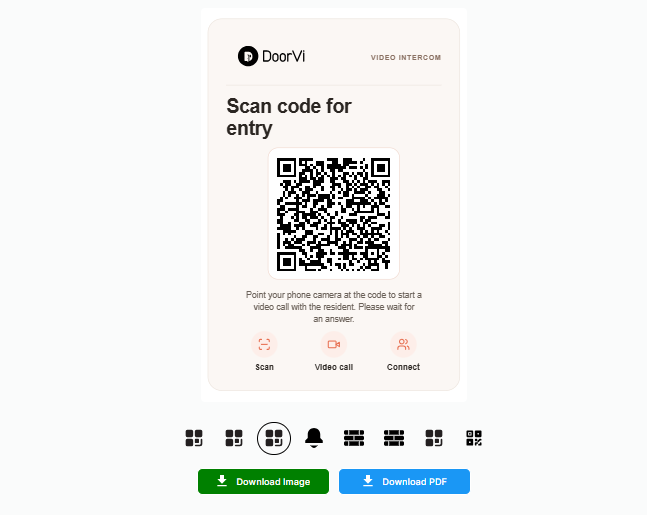
Each building has a unique QR code that visitors scan at the entrance to initiate a video call with the resident. Choose from multiple designs, then download and print the code to display at the gate.
1
Go to Admin Panel → Buildings — each building is listed as a row in the table
2
At the end of the building row, click the blue Controls icon
3
In the popup, click the QR Code button — a screen opens showing all available QR code designs for that building
4
Browse through the designs and select the one that best suits your property
5
Click Download Image to save as a PNG, or Download PDF to get a print-ready file
6
Print the QR code and paste or mount it at the entry gate — visitors point their phone camera at the code to start a video call with the resident
QR Code Designs — Download Screen
DoorVi admin panel — QR code design screen with Download Image and Download PDF options
💡
Use Download PDF for the best print quality. Laminate the printed QR code or place it in a weatherproof holder to protect it at outdoor entry points.
🛡️

Visitor Verification Settings

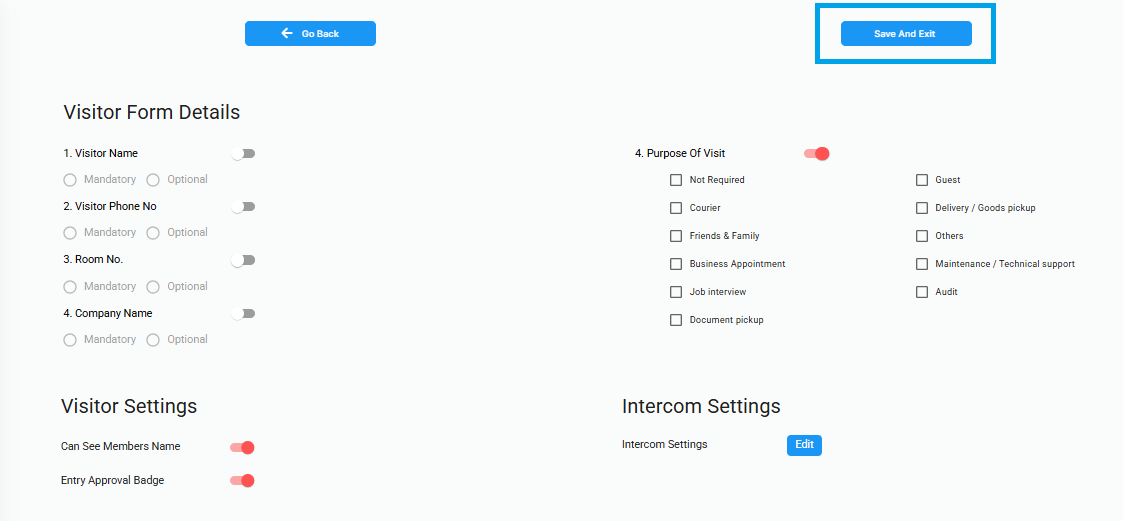
Control what information visitors must provide before initiating a call, enable the Entry Approval Badge, and configure how residents are identified to visitors — all from the building Settings panel.
1
Go to Admin Panel → Buildings, then click the blue Controls icon at the end of the building row
2
In the popup, click Settings — the Visitor Verification Settings page will open
3
Under Visitor Form Details, toggle on the fields you want visitors to fill in before the call is placed — available fields include Visitor Name, Visitor Phone No., Room No., and Company Name. For each enabled field, select whether it is Mandatory or Optional
4
Enable Purpose of Visit to ask visitors to select the reason for their visit before the call. Available options include: Guest, Courier, Delivery / Goods Pickup, Friends & Family, Business Appointment, Job Interview, Document Pickup, Maintenance / Technical Support, Audit, and Others
5
Enable Show Resident Name to Visitor if you want the resident's name to be visible on the visitor's screen during the call flow
6
Enable Entry Approval Badge — when a resident approves a visitor during the video call, a digital badge appears on the visitor's mobile screen. The visitor can show this badge to the security guard as proof of approval. If a smart lock is integrated, the door will unlock automatically upon approval
7
Click Save And Exit at the top right to apply all changes
Visitor Form Details — Settings Screen
DoorVi admin panel — Visitor Form Details settings screen showing toggles for Visitor Name, Phone No., Room No., Company Name, and Purpose of Visit options
ℹ️
The Entry Approval Badge works independently of a smart lock — even without hardware integration, the visitor can present the badge on their phone screen to the security guard for manual gate clearance.
🎫

Pre-Approval Settings

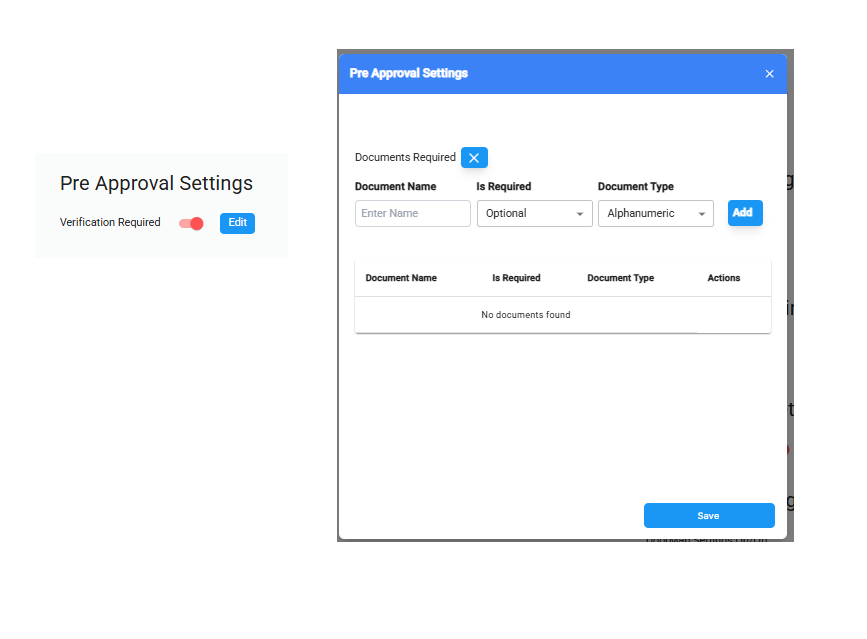
Allow residents to generate pre-approval invitations for expected guests or visitors. When enabled, residents see a dedicated button in the DoorVi app to create and share entry passes — no call required at the gate.
1
Go to Admin Panel → Buildings, then click the blue Controls icon at the end of the building row
2
In the popup, click Settings — the building settings page will open
3
Locate the Pre-Approval Settings card and toggle on Verification Required to enable the pre-approval feature for that building
4
Click the Edit button on the Pre-Approval Settings card to configure document verification for pre-approved visitors
5
In the Pre-Approval Settings modal, toggle on Documents Required if you want visitors arriving with a pre-approval code to present valid identity or entry documents at the gate
6
To add a document, enter the Document Name, set whether it is Optional or Mandatory under Is Required, choose the Document Type (e.g. Alphanumeric), and click Add — the document will appear in the list below
7
Click Save to apply the document requirements
Pre-Approval Settings — Document Verification Modal
DoorVi admin panel — Pre Approval Settings modal showing Documents Required toggle, Document Name, Is Required, Document Type fields and Add button
ℹ️
Once Verification Required is enabled, residents will see a Pre-Approval button in their DoorVi app. They can use it to generate a unique entry pass and share it directly with their expected guests or visitors.
📞

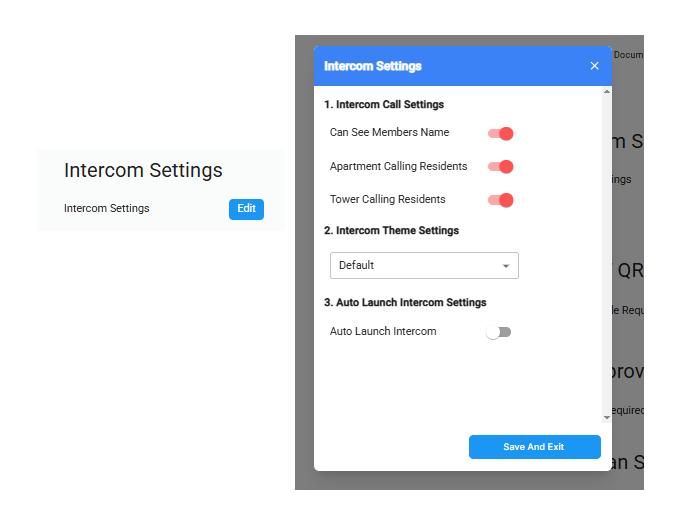
Intercom Settings

Configure how the intercom behaves for residents — control visibility of member names, set the intercom theme, manage call display options, and enable auto-launch for a seamless visitor experience.
1
Go to Admin Panel → Buildings, then click the blue Controls icon at the end of the building row
2
In the popup, click Settings — the building settings page will open
3
Locate the Intercom Settings card and click Edit — the Intercom Settings popup will open
4
Under Intercom Call Settings, configure the following:
  • Can See Members Name — enable this to allow residents to see name of the residents before initiating a intercom call
  • Apartment Calling Residents — enable this to allow residents within the same apartment to call each other via the intercom
  • Tower Calling Residents — enable this to allow residents across different towers to call each other via the intercom
5
Under Intercom Theme Settings, configure the following:
  • Theme — select the intercom display style from the dropdown (e.g., Dialer)
  • Show Call Logs — check this to display the call history on the intercom screen
  • Show Dialer Pad — check this to show a dial pad for manual number entry
  • Contact List Type — choose Old Intercom for the classic layout, or Contact Details for a modern contact-based view
6
Under Auto Launch Intercom Settings, toggle on Auto Launch Intercom to automatically open the intercom interface when a visitor arrives at the gate
7
Click Save And Exit to apply all changes
Intercom Settings — Configuration Popup
DoorVi admin panel — Intercom Settings popup showing Call Settings, Theme Settings, and Auto Launch Intercom options
👥

Resident Management

Add residents, assign units, and manage their access

👤

Add a Resident

Residents receive an app invite via SMS/WhatsApp to set up their DoorVi mobile app.
1
Go to Buildings / Tower and click the Manage House / Flat button for the relevant building
2
In the list of units, locate the apartment you want to add a resident to
3
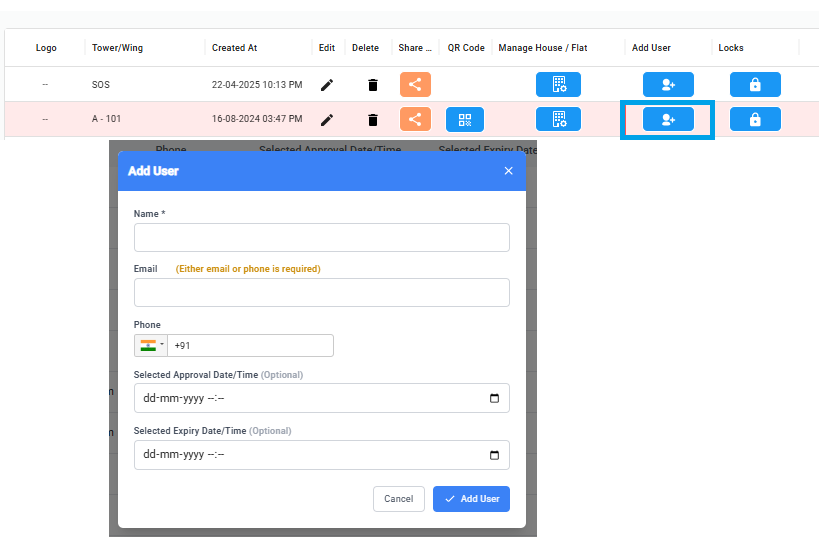
Click the blue Add User button next to that apartment — an Add User popup will open
4
Enter the resident's Name (required) and either their Email or Phone number (at least one is required)
5
Optionally set a Approval Date/Time and Expiry Date/Time to restrict the resident's access to a specific period
6
Click Add & Send email to save — the resident will receive an invitation to set up their DoorVi app
Add User popup
ℹ️
Multiple residents can be linked to the same apartment. All active residents for a unit receive visitor calls simultaneously.
📋

Bulk Import Residents

Use a CSV file to add residents across all apartments in one go — ideal for large buildings. The same CSV used for towers can be extended with resident details.
1
Click Download CSV on the Manage Tower / Wings page to get the sample template
2
Open the file — it has five columns: sub_unit_1 (Tower), sub_unit_2 (Apartment), user_name, user_email, user_phone
3
Fill in the resident's name and either their email or phone number for each apartment row. Leave user_name, user_email, and user_phone blank for empty units
4
Save the file as .csv (not .xlsx). In Excel: File → Save As → CSV UTF-8
5
Click Upload CSV → select your file → click Upload to import all residents at once
📋
CSV format example:
sub_unit_1, sub_unit_2, user_name, user_email, user_phone
Tower A, A - 101, sparsh, sparsh@doorvi.co,
Tower A, A - 101, jatin, jatin@doorvi.co,
Tower A, A - 102,,,
Tower A, A - 103,,,

⬇ Download sample CSV
💡
Multiple residents can share the same apartment row — just repeat the sub_unit_1 and sub_unit_2 values with a different resident's details on each row, as shown above for A - 101.

Approve / Reject Resident Requests Manually

When a building is configured with Auto-Approve Join Request set to No, each resident who signs up on the DoorVi app must be manually approved before they can access the building.
1
Click New Requests in the left sidebar — this shows all pending residents who have signed up and are awaiting approval
2
Review the list and click Manage Request next to the resident you want to process
3
In the Select Status Type dropdown, choose Approved or Rejected
4
Under Select Approval Date/Time, choose Immediate Approval to activate the resident right away, or Schedule for Future Date and set the approval date and time
5
Under Select Expiry Date/Time, choose Lifetime Access for permanent access, or Set Expiry Date and specify the date and time when the resident's access should expire
6
Click Submit to confirm the decision. To discard the request entirely, click Delete Request
ℹ️
This setting is configured per building. If Auto-Approve is enabled for a building, new residents are approved instantly upon sign-up and will not appear in New Requests.
👥

Residents Directory

View a complete list of all registered residents across your buildings, with their unit details, contact information, device type, and last active date.
1
Click Users Data in the left sidebar to open the residents directory
2
Use the Select Status Type dropdown to filter residents by approval status (e.g. All, Approved, Pending)
3
Use the Select Apartment dropdown to filter by building
4
Use the Select Sub Division dropdown to narrow down by tower or wing
5
The table shows each resident's User Name, Email / Phone, unit they are registered for, registration date, device details, and last seen date
6
Click Refresh Page to reload the latest data
🧾

Visitor Logs

Complete record of every entry attempt at every gate

📋

Viewing the Visitor Log

Every visitor call attempt is logged with a photo, name, call status, unit, and timestamp — giving you a complete record of all entry activity across your buildings.
1
Click Visitor Log in the left sidebar to open the call log
2
Use the Select Apartment dropdown to filter logs by building
3
The table shows each entry's Visitor Image, Visitor Name, Call Status (Received or Missed Call), Unit, and Date/Time
4
Click the More Details button on any row to view additional information about that visit
5
Click Refresh Page to reload the latest entries

Pre-Approvals

Let residents create passes for expected guests before they arrive

🎫

How Pre-Approvals Work

A resident creates a pass for an expected guest from the DoorVi app. The guest receives a 6-digit invite code. At the gate, the guard or kiosk selects Have an Invite Code and enters the 6-digit code — no call required. The gate opens automatically.
💡
Pre-approvals are the fastest entry flow — ideal for guests, deliveries, and domestic help.
📆

Pass Types

Residents and admins can create different pass types depending on the use case.
Pass TypeValid ForBest For
Single-useOne entry, one dayDelivery, one-time guest
Multi-use (date range)Unlimited entries in a date windowHouse guests staying a few days
RecurringSpecific days of the weekMaid, driver, cook
Event passMultiple guests, one time windowBirthday party, building event
🛡️

Check in / out - Visitor Data

As an admin, you can view all checked-in and checked-out visitors who have arrived across the building.
1
Click In Out Logs in the left sidebar to open the guest data view
2
Use the Select Apartment dropdown (top right) to filter records by building
3
At the top, the Total In and Total Out counters show a live summary of guest movements for the selected building
4
Switch between the IN USERS and OUT USERS tabs to view guests who are currently inside or have exited
5
The table shows each guest's Name, Status (IN / OUT), Method (e.g. QR code), Email / Phone, User Apartments, and Date/Time of entry
6
Click the More Details button on any row to view additional information about that guest's visit
7
Click Refresh Page to reload the latest data
⚙️

Settings

Account-level configuration, language, and security

🌐 Language

Dashboard supports 11 languages: English, Hindi, Spanish, Russian, Portuguese, Japanese, Korean, Indonesian, German and Italian. Set per user account.

👥 Admin Team

Add co-admins with read-only or full-access roles. Useful for RWA committee members who need to view logs only.

🔐 Two-Factor Auth

Enable 2FA for all admin logins. Strongly recommended for accounts managing multiple buildings.

🗃️ Data & Privacy

Download all building data, or request deletion as per GDPR Compliances, DPDP Act (India) / LGPD (Brazil) compliance requirements.

🔑 API Access

Generate API keys for integrating DoorVi with your RWA management software or third-party tools.

📤 Audit Log

See every admin action taken in the dashboard — who changed what, and when. Exportable for compliance.

💡
Need help? Reach the DoorVi support team from Contact Us or email media@doorvi.co